Draft AI
How to make a carousel on Instagram: from idea to published post
How to make a carousel on Instagram and post it from your phone or computer: how many slides you can add, the right size, music and tools for the slides.
To make a carousel on Instagram from your iPhone, tap Create, then POST, then SELECT MULTIPLE and pick the photos you want to share. A single carousel post can hold up to 20 photos and videos in any mix.
This guide walks you through posting from your phone or computer, choosing slide sizes, and five ways to design slides without a designer. It also covers how to write text that keeps people swiping to the last slide, how music and drafts work, and what you can edit after posting.
What is an Instagram carousel?
An Instagram carousel is one post made up of several slides. You can include up to 20 photos and videos in any mix, according to the Instagram Help Center.
In your feed, the first slide appears with a row of dots beneath it. Swipe to see the rest. Likes and comments apply to the whole post, not to individual slides.
Videos inside a carousel stay part of the post. They don’t count as Reels and don’t show up in the Reels tab.
What research says about Instagram carousels
Four studies compared carousels with Reels and single-photo posts. Across the studies, carousels stand out for engagement and saves. Reels reach more people and are more likely to reach people who don’t follow you yet.
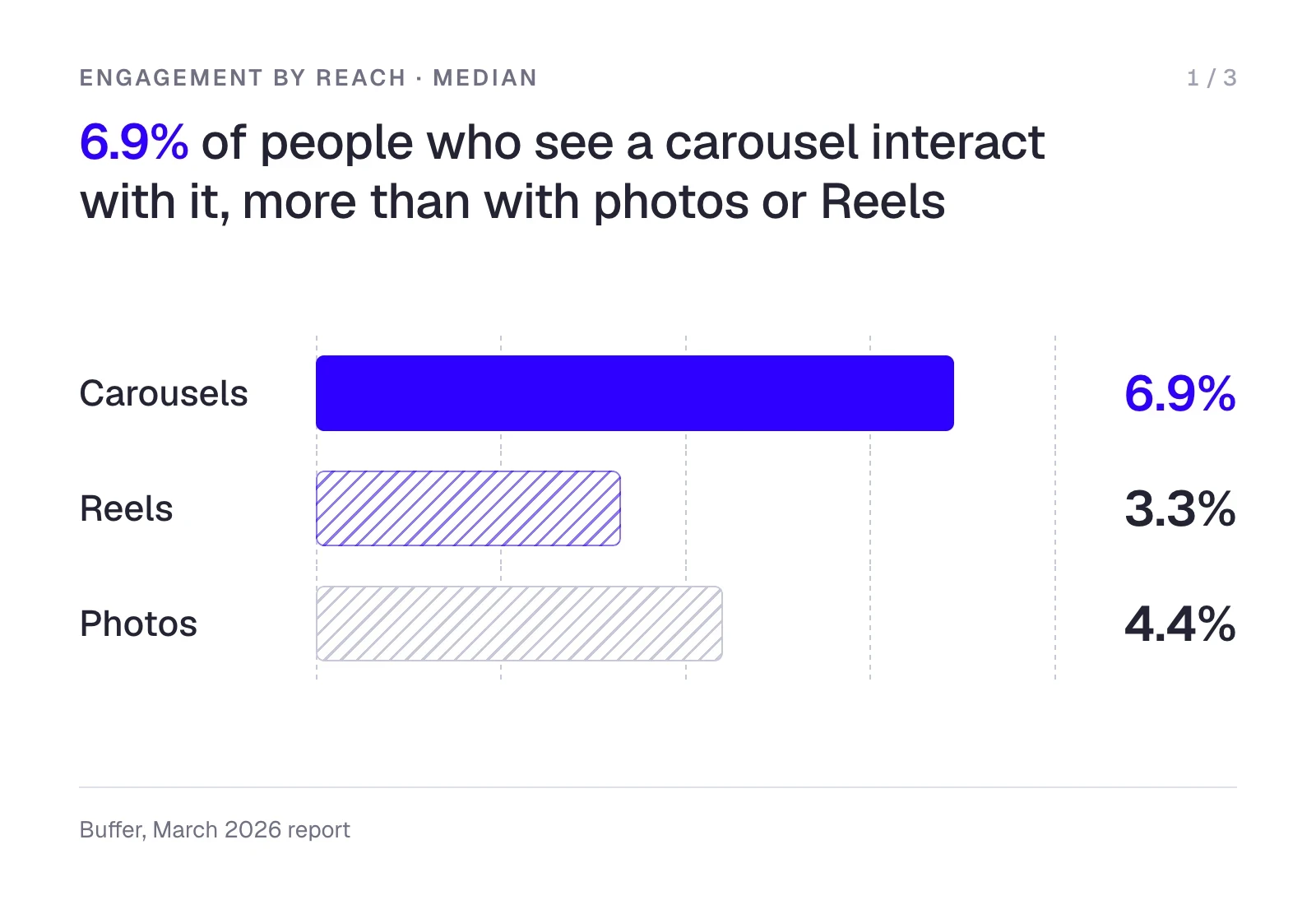
Buffer measured engagement as the share of people who saw a post and interacted with it. Median engagement was 6.9% for carousels, 4.4% for single-photo posts, and 3.3% for Reels in Buffer’s March 2026 report.
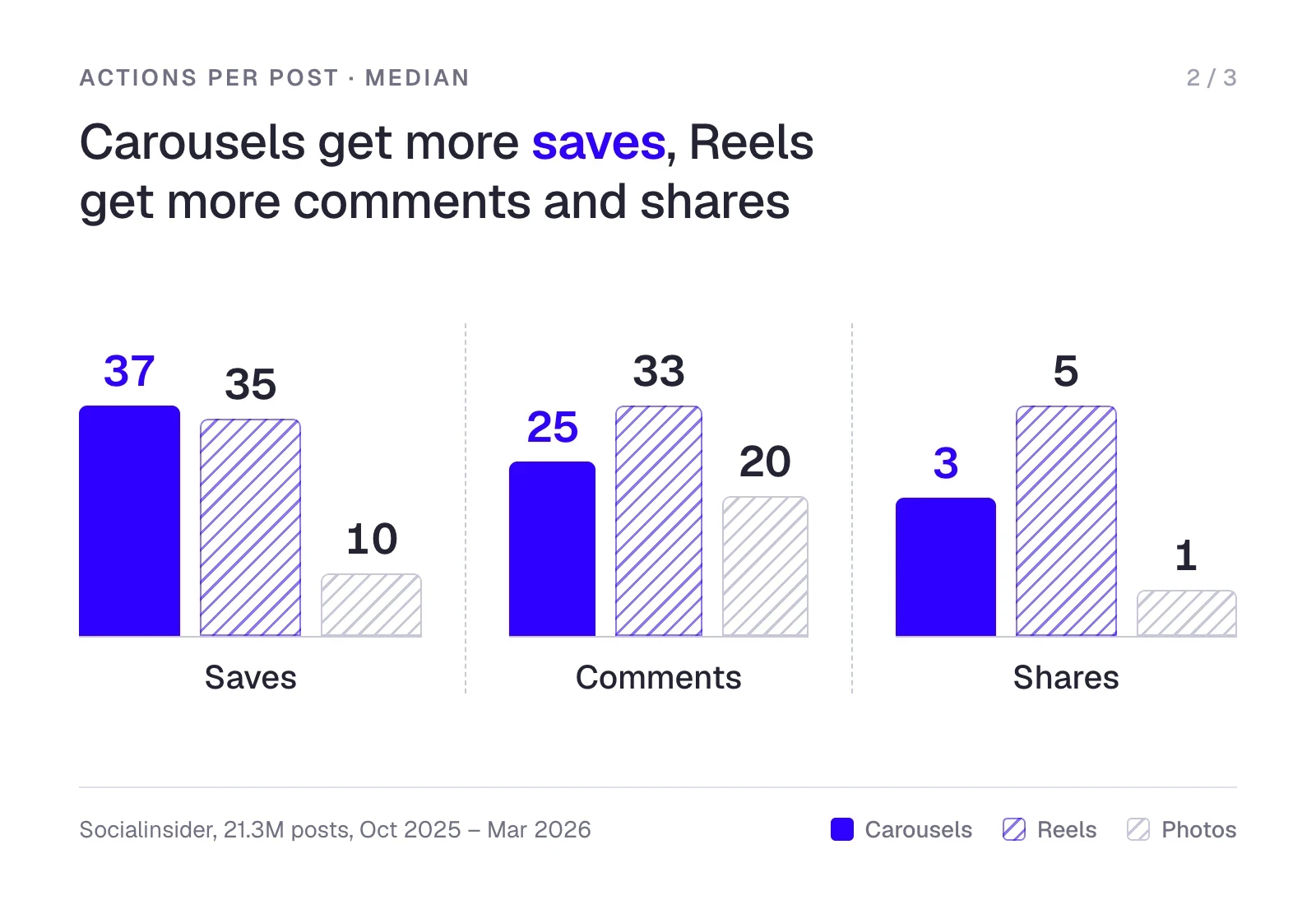
Across 21.3 million brand posts from October 2025 to March 2026, median saves per post were 37 for carousels, 35 for Reels, and 10 for single photos. Reels led in comments (33 per post, compared with 25 for carousels and 20 for single photos) and sends (5, compared with 3 and 1), according to Socialinsider’s report.
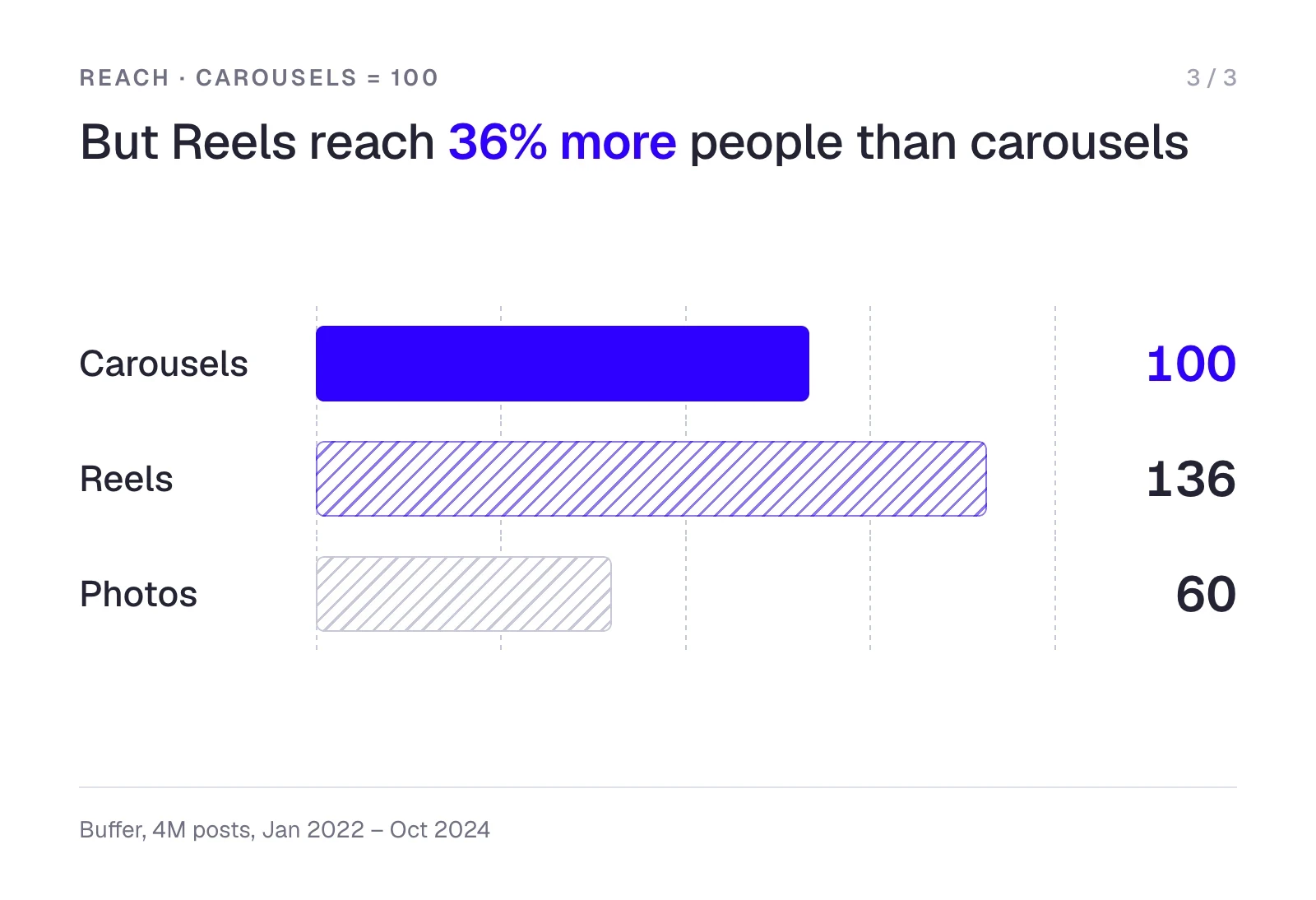
Buffer analyzed more than 4 million posts published through its platform from January 2022 to October 2024. Carousels got 1.12 times as many interactions (likes, comments, saves, and shares) as Reels and 2.14 times as many as single-photo posts. Reels reached 1.36 times as many people as carousels and 2.25 times as many as single-photo posts because Instagram shows Reels to non-followers more often. Details are in Buffer’s reach and engagement study.
In a study of 24.4 million posts, carousels were saved 9 times as often as single-photo posts. In 2026, carousel posting rose 24% year over year, compared with 35% for Reels and 12% for single-photo posts, according to Metricool’s June 2026 study.
Why carousels are often faster to make than videos
A video takes scripting, filming, and editing. For a carousel, you can often use photos you already have and add a few lines of text to each. A therapist, for example, could use those slides to answer a question clients often ask.
Carousels work well for how-tos, lists, and breakdowns people can revisit. Someone might save a checklist on how to prepare for their first therapy session or pull up a marketing funnel breakdown when they sit down to build their own.
How to make a carousel on Instagram from your phone
You can put together a carousel in a couple of minutes by starting it the same way you’d start a regular feed post. These iPhone steps follow the Instagram Help Center.
- Tap Create at the top of the screen, or swipe right anywhere in your feed.
- Tap POST, then tap SELECT MULTIPLE.
- Pick up to 20 photos and videos from your phone’s photo library.
- To adjust the crop, tap a photo or video and move it within the frame until it fits the way you want. When you’re done, tap Next in the top right.
- Tap a filter at the bottom of the screen to apply it to every slide. To edit a photo or video on its own, tap it.
- To change the order, press and hold a slide, then drag it to a new spot. To remove a slide, press and hold it, then drag it to the trash icon. Tap Next when you’re done.
- Choose Single caption for the whole post or Multiple captions to write a separate caption for each slide.
- If you want, add one location for the post. To tag someone, tap Tag People and swipe to the photo or video where you want the tag to appear.
- Tap Share.
Instagram uses one orientation for the entire carousel: square, portrait, or landscape. Prepare all your slides in the same aspect ratio so they fit the frame. A post with several videos can take longer to upload, so use a reliable internet connection.
How to post a carousel on Instagram from a computer
Open instagram.com in your browser. You can create and publish a carousel there without any third-party tools.
- In the left menu, click Create, then Post, then Select from computer.
- Click the multiple-files icon and select up to 20 photos and videos from your computer.
- To adjust the crop, click and hold a photo, then drag it within the frame. Click Next in the top right.
- Click and drag slides into the order you want. To remove a slide, click the X next to it. Click Next in the top right.
- Click a filter to apply it to all slides, or click an individual slide to apply a filter to that slide.
- Write a caption. You can also add a location for the post and tag people in individual photos. Click Share.
There are two differences from the phone app: you get one caption for the whole carousel, and you can’t save a draft on a computer.
What Instagram carousel size should you use?
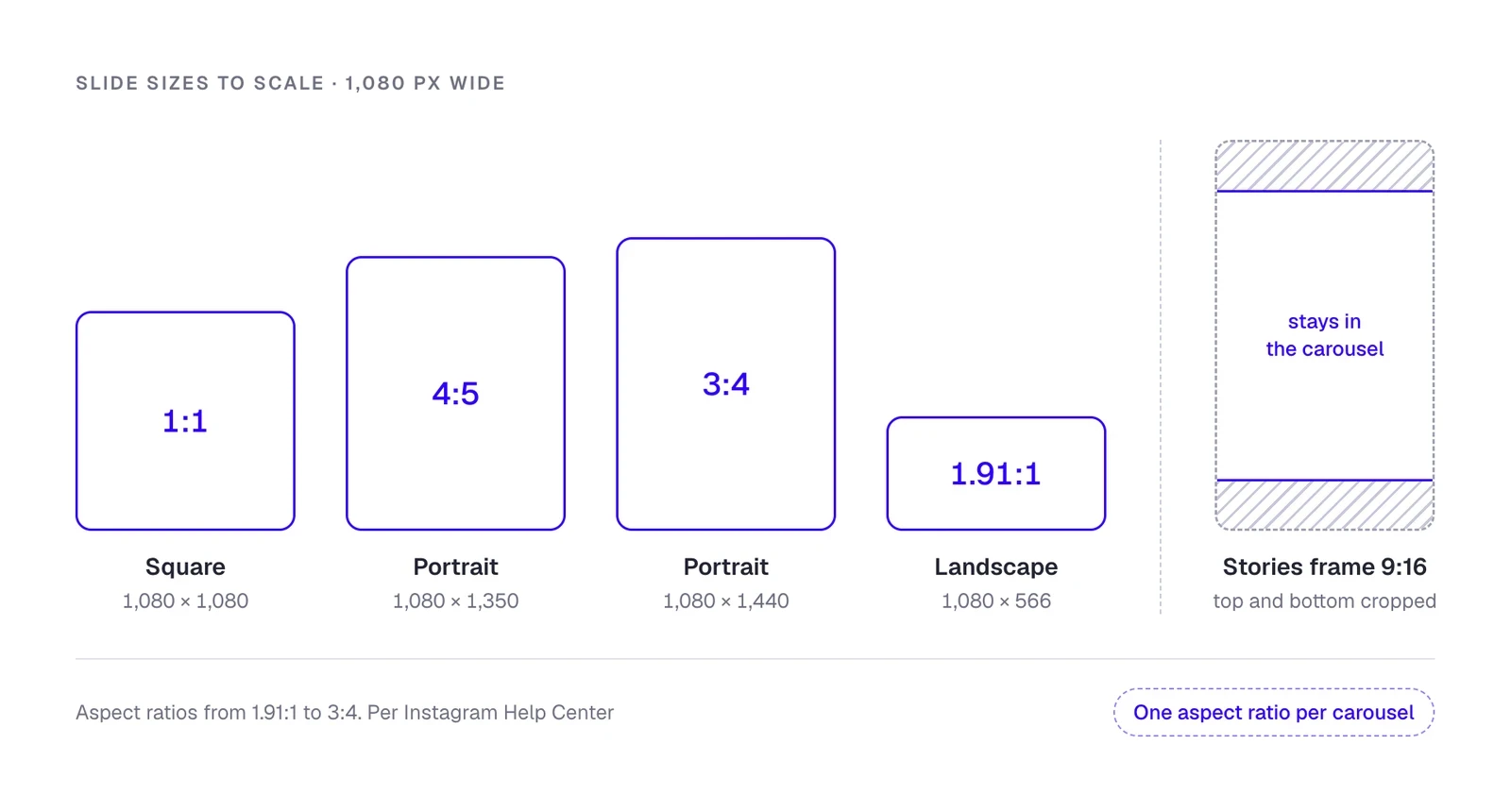
Make your slides 1,080 pixels wide. Instagram accepts aspect ratios from 1.91:1 to 3:4. The orientation you choose, whether square, portrait, or landscape, applies to every photo and video in the carousel.
| Format | Aspect ratio | Size in pixels |
|---|---|---|
| Square | 1:1 | 1,080 × 1,080 |
| Portrait | 4:5 | 1,080 × 1,350 |
| Portrait | 3:4 | 1,080 × 1,440 |
| Landscape | 1.91:1 | 1,080 × 566 |
According to Instagram’s guide to photo resolution, photos outside the supported aspect ratio range get cropped. It enlarges photos narrower than 320 pixels to 320 and shrinks photos wider than 1,080 pixels to 1,080. Prepare all your slides in the same aspect ratio so you can choose what stays in the frame.
Instagram Stories frames are vertical and taller than 3:4, so Instagram crops them at the top and bottom when you use them in a carousel. Keep your text near the center so it stays in view.
How to design slides for an Instagram carousel
You can make carousel slides for free in Instagram or a separate app, even without design experience. Below are five methods, from finished text laid out across slides to a layout you build yourself.
Draft AI
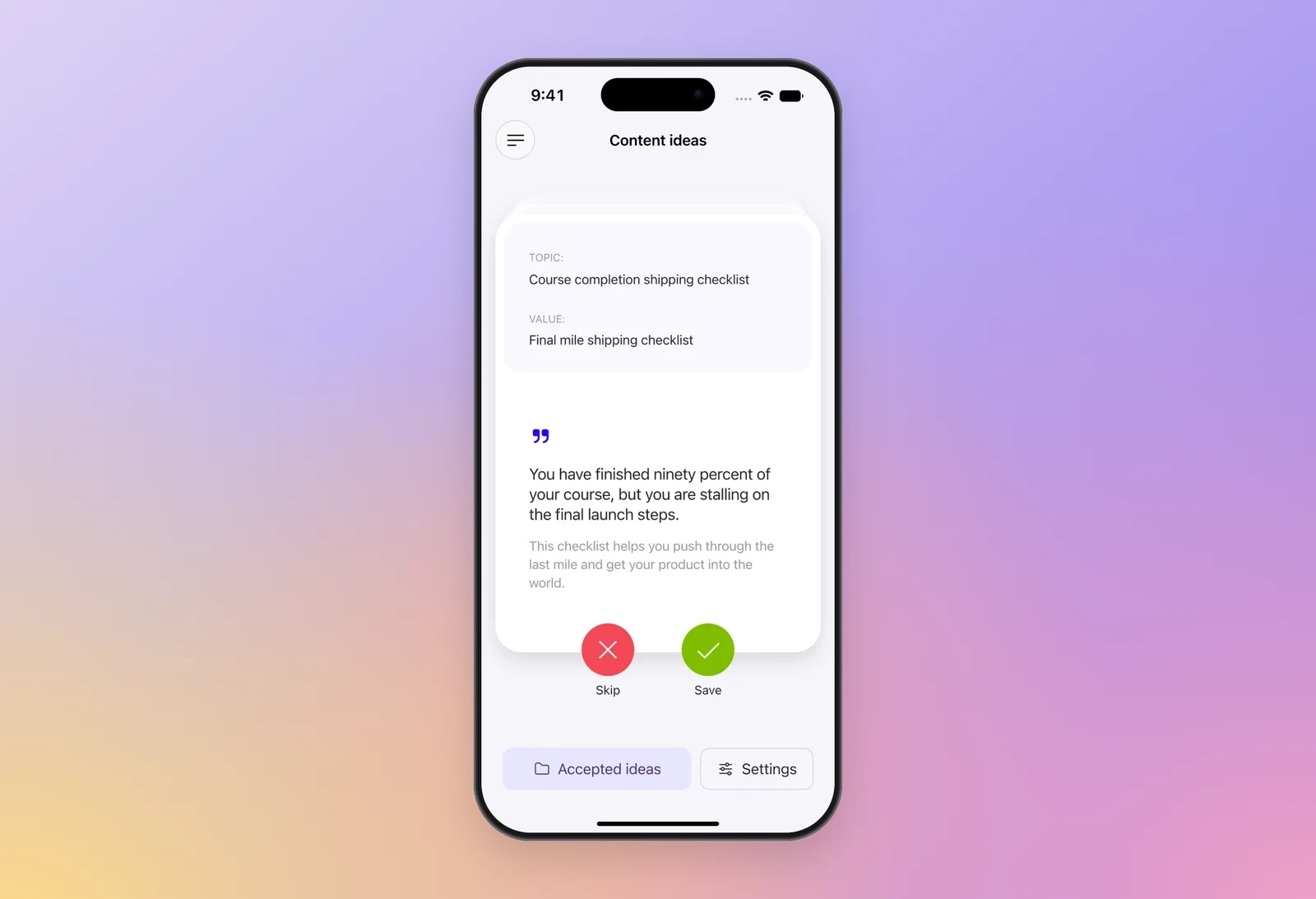
In Draft AI, you can dictate an idea in your own words, and the app cleans it up and turns it into text in your style. If you’re out of ideas, browse a feed of ideas for your niche or make your own carousel from a link to an Instagram or TikTok video. It’s free to try.
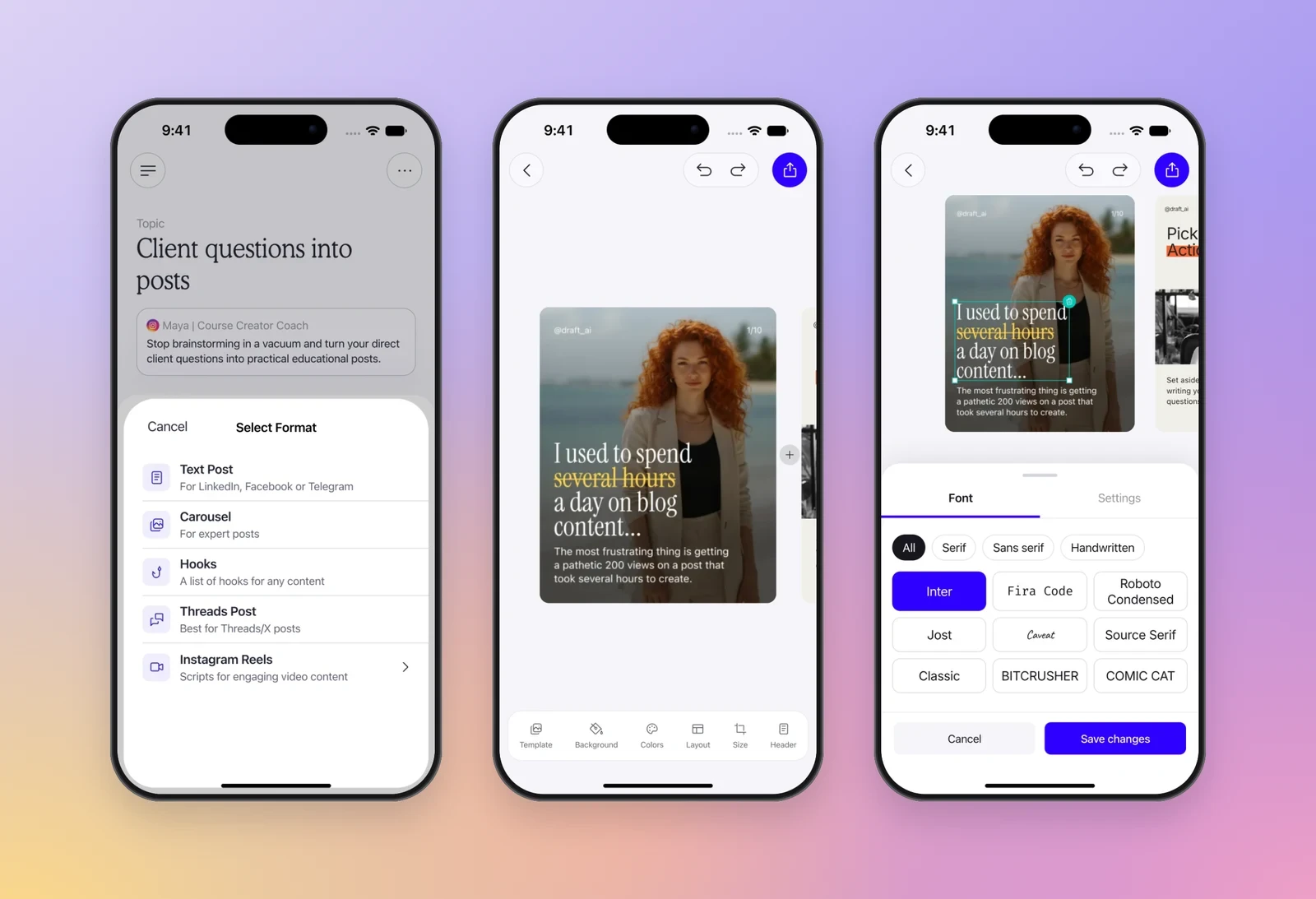
In the editor, choose a template, fonts, colors, and an aspect ratio. Move text and photos on each slide, then save the slides to your phone. Try it if you’d rather talk through how you help clients manage anxiety than write slide text. The downsides: it’s an iPhone app, and you choose the photos for the slides yourself.
Instagram Stories
The simplest method: open the Stories editor, add a photo and type over it. Then tap Save at the top of the screen. The frame goes to your camera roll and the story isn’t posted, as the Instagram Help Center explains. Later, post the saved frames as a carousel.
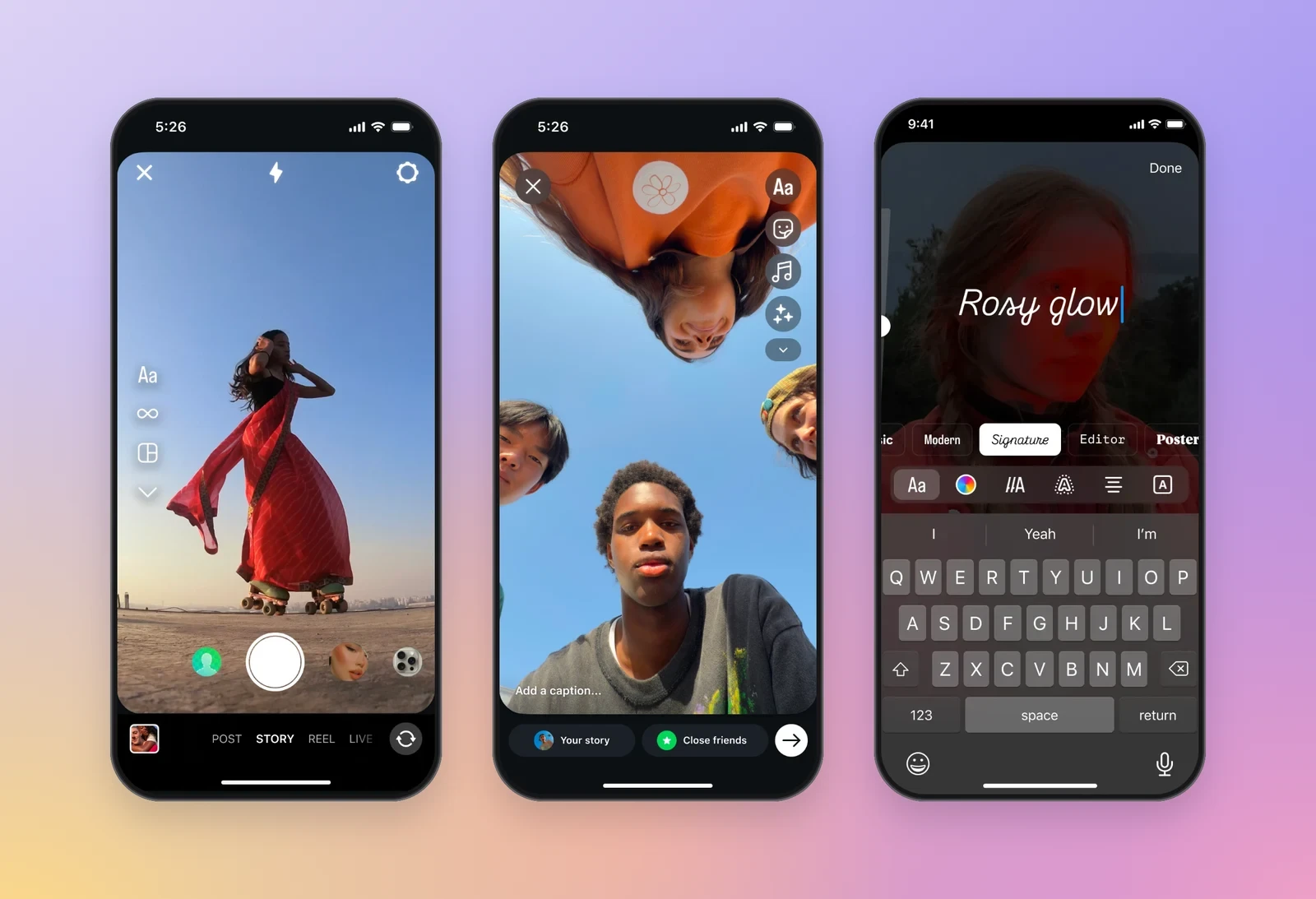
It’s free and works without Canva or any other app. It fits when a photo with a short caption is enough, such as a webinar announcement or three takeaways from a coaching session. Design options are limited, and Instagram crops Stories frames in the feed.
Edits
Instagram’s Edits app is free, with a paid Edits Plus subscription. Its October 2026 carousel editor puts photos, videos, and text on a shared canvas. A photo or headline can stretch across two slides, and the finished carousel can be downloaded or posted to Instagram right away, PetaPixel reported.
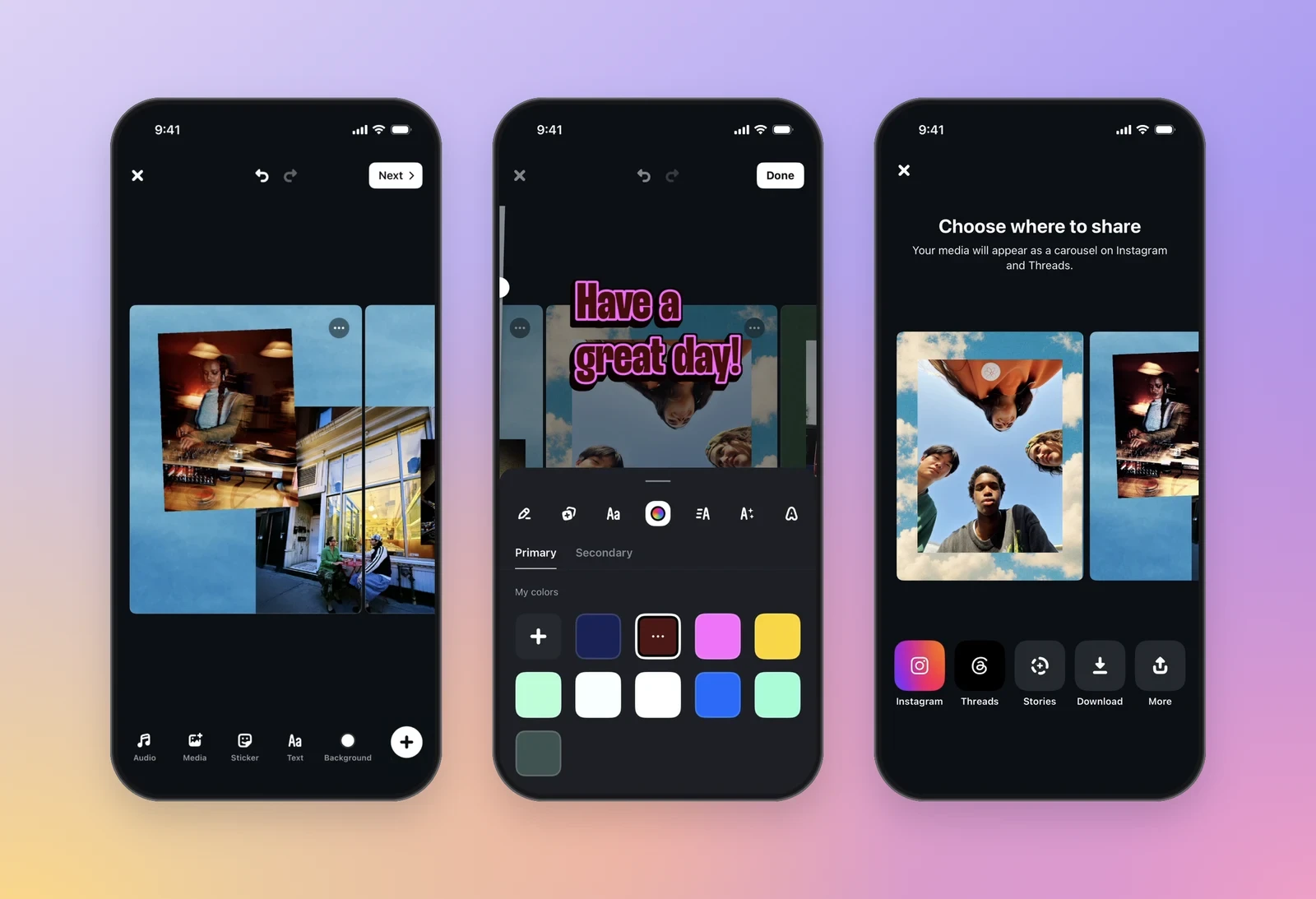
Edits fits when one carousel needs both photos and short videos, such as a photo from your talk and a clip from the audience. The downside: the carousel editor is new and was iPhone only at launch.
Canva
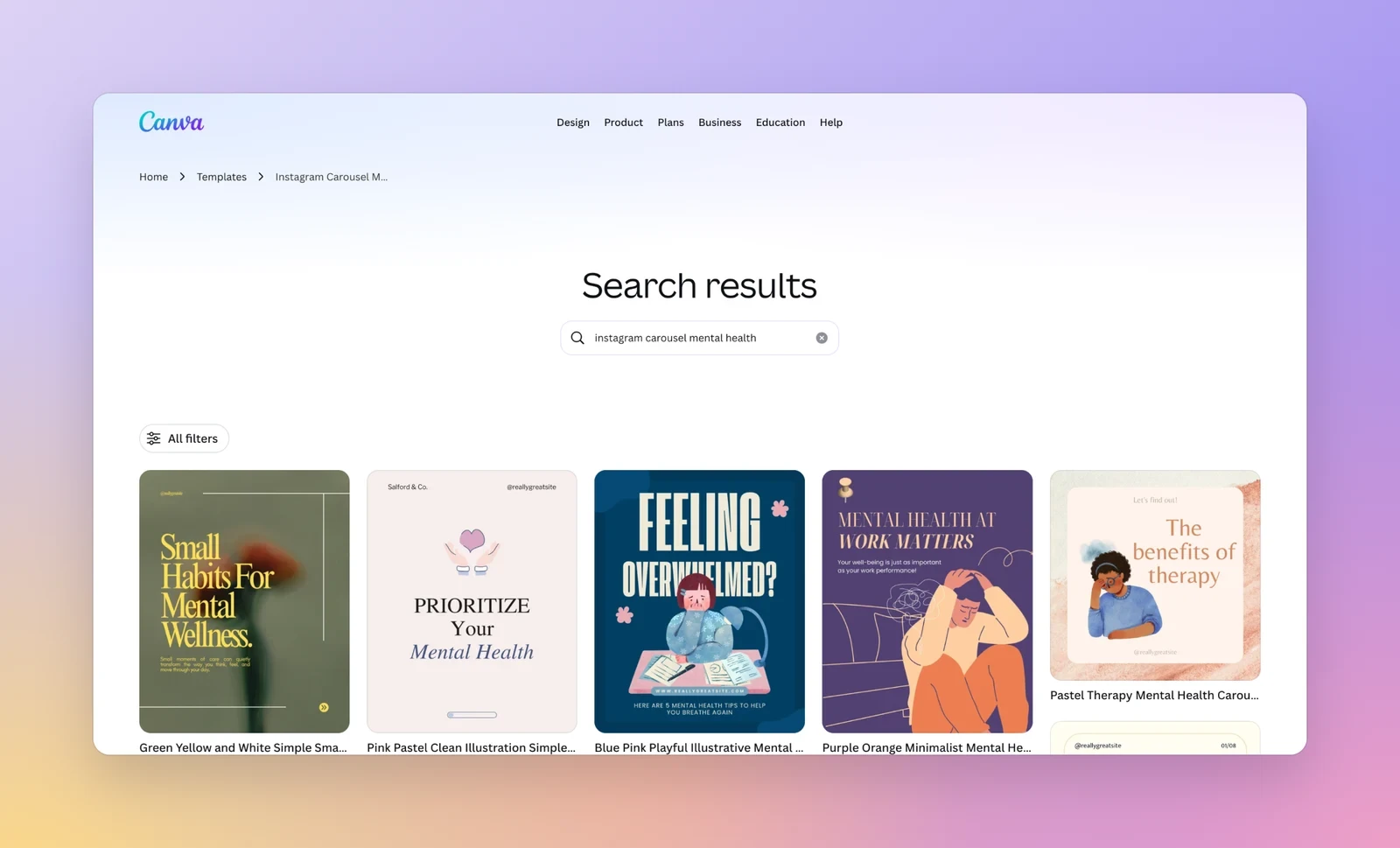
To make a carousel in Canva, swap your text and photos into its carousel templates. Try it when you have a course outline ready to split into slides.
Canva has a free plan and a paid Pro plan with extra templates, AI tools, and scheduled posting. Check pricing for your country. You still write the slide text.
Figma
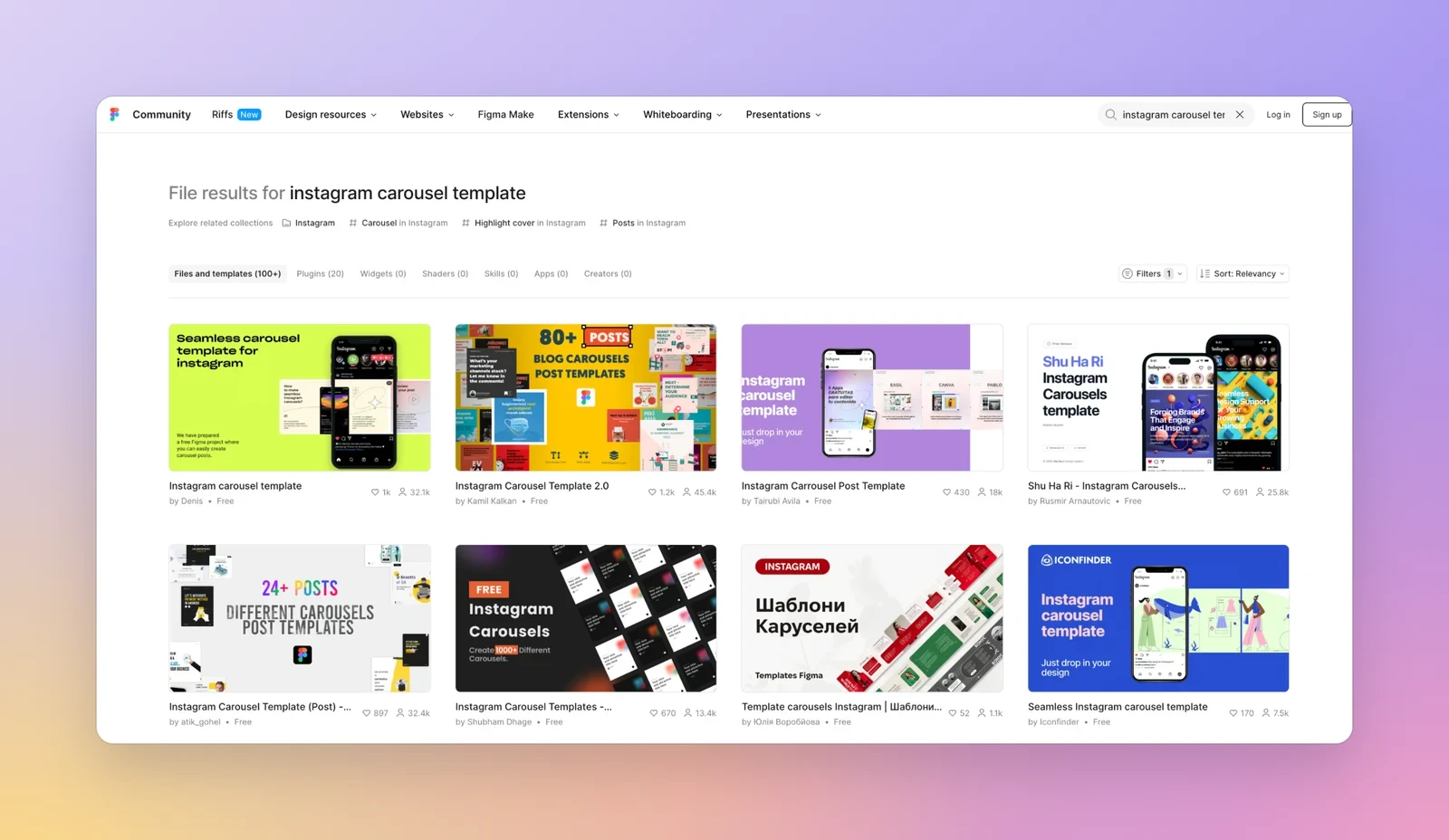
In Figma, build your own layout and place text and images on each slide. You can start for free.
Use Figma for a branded series of client case studies. Choosing fonts, colors, and layouts yourself takes time and design skills.
Comparison of the five methods
Here are the five methods side by side:
| Method | Cost | Best for | Main downside |
|---|---|---|---|
| Draft AI | Free to try | Talking through ideas | iPhone only, you pick photos |
| Instagram Stories | Free | Photos with short captions | Limited design, cropped frames |
| Edits | Free, paid Edits Plus subscription | Photos and videos in one carousel | New editor, iPhone only at launch |
| Canva | Free plan, paid Pro plan | Content ready for a template | You write the slide text |
| Figma | Free to start | Custom branded slides | Time and design skills |
How to write text for an Instagram carousel
Whatever tool you use to design your slides, the text has three parts. The first slide gives people a reason to swipe, the middle slides deliver what you promised, and the last slide tells readers what to do next.
What to write on the first slide
Open with a hook, a short headline that names the reader’s problem and shows what they’ll be able to do after reading. For a carousel about procrastination, try “How to stop procrastinating on the work that matters.”
If the problem is familiar to your readers, a question can work too. Try “Why do you keep putting off work that matters to you?” if the next slides show readers how to figure out what’s holding them back. Find more opening lines in the collection of hooks by topic.
How to order your carousel slides
List everything you need to cover to deliver on the first slide’s promise. For a how-to, put the steps in the order readers will do them. Give each action its own slide and add a detail that helps readers follow through.
- “Name the task as a single action. If your list says ‘Deal with the website,’ try ‘Write the homepage copy’ so you know where to start.”
- “Set a timer for 10 minutes and just get started. You can finish the task later.”
- “Notice how you feel right before you start. Are you avoiding the task itself or the discomfort it brings up?”
A photo of you leading a session, at your laptop, or speaking onstage works better here than a stock image. Pick a photo of yourself at work that fits the step, then put the instruction directly on it.
What to write on the last slide
Ask readers to take one action. If the carousel doubles as a cheat sheet, end with “Save this for the next time you catch yourself procrastinating.”
To keep the conversation going, offer a lead magnet, a free resource related to the post. Name it and tell readers how to get it. For example, “Comment START and I’ll send you a 10-minute exercise.”
That makes the carousel a first step toward your coaching sessions or course. If you’ve automated delivery, leave a test comment and check that the DM arrives and the resource opens.
Music, drafts, and edits for Instagram carousels
Adding music, saving a draft for later, and making changes after posting are three things you might only think about at the last minute.
How to add music to an Instagram carousel
Instagram has supported music on photo carousels since August 2023, when Meta announced the feature. Music became available for carousels with video in June 2024, according to Social Media Today.
How to save a carousel as a draft
On your phone, you can save a carousel as a draft, but only after your first change: a caption, a location, a tag or a photo edit.
- Start creating your carousel and add a caption or location.
- Tap Back twice, then tap Close.
- Tap Save draft.
To pick up where you left off, tap Create, then tap Drafts. You can open a draft only on the phone where you saved it, even if you sign in to Instagram on another phone or computer. If you delete the app, you’ll lose your drafts.
How to edit and reorder a carousel after posting
Open the post’s three-dot menu and tap Edit. You can change the caption or captions, update the location and tags, and remove photos or videos. To change the order, press and hold a slide, then drag it to a new spot. Tap Done to save your changes.
You can’t add a new slide after publishing a carousel. Before you tap Share, swipe through every slide one more time.
Common Instagram carousel mistakes
You can catch most of these mistakes by swiping through your carousel on your phone before you tap Share.
- Mixing aspect ratios. Instagram uses one orientation for the whole carousel, so some slides may get cropped. Pick an aspect ratio before you start designing.
- Putting text near the edges of a Stories frame. Cropping a Stories frame to fit a carousel can cut off text at the top or bottom. Leave some space around the text and check that every line is visible.
- Planning to add a slide later. You can add photos and videos only before you publish. Check your slides against your outline before posting.
- Opening with a generic headline. “Therapist tips” gives readers little reason to swipe. Name a specific problem with a headline like “How to get started on a task you keep putting off.”
- Asking for too much on the last slide. “Save, follow, and comment” makes readers choose between three actions. Pick the one you most want them to take.
- Deleting Instagram while you still have drafts. Uninstalling the app deletes your drafts. Save your slides to your camera roll and copy the caption into your notes first.
FAQs
Here’s what you can put in an Instagram carousel and what you can change after you post it.
How many photos can you put in an Instagram carousel?
You can include up to 20 photos and videos in a single carousel. Videos count toward the same limit as photos, according to the Instagram Help Center.
Can you add photos to an Instagram carousel after posting?
No, you can’t add photos or videos to a published carousel. You can remove slides or rebuild the carousel and publish it as a new post.
How do you change the order of an Instagram carousel after posting?
Open the post’s three-dot menu and tap Edit. Press and hold a slide, then drag it to its new spot. Tap Done to save the new order.
Can you mix photos and videos in an Instagram carousel?
Yes, you can mix photos and videos in one carousel. All slides share the same orientation, so they’ll all be square, portrait, or landscape.
Can you add music to an Instagram carousel?
Yes, you can add music to carousels with photos or videos. Instagram added music to photo carousels in August 2023 and to carousels with video in June 2024.
Can you post a carousel on Instagram from a computer?
Yes, you can post a carousel on instagram.com. Click Create, then Post, then Select from computer, and click the multiple-files icon. You can save drafts only in the phone app.
What size should Instagram carousel images be?
Make your images 1,080 pixels wide. Instagram supports aspect ratios from 1.91:1 to 3:4, including 4:5 at 1,080 × 1,350 pixels. Use the same orientation for every slide.
Is it better to post Reels or carousels?
In the studies, carousels got more engagement and saves. Reels reached more people overall and were shown more often to people who didn’t follow the account.