How to Share Carousels Across Platforms
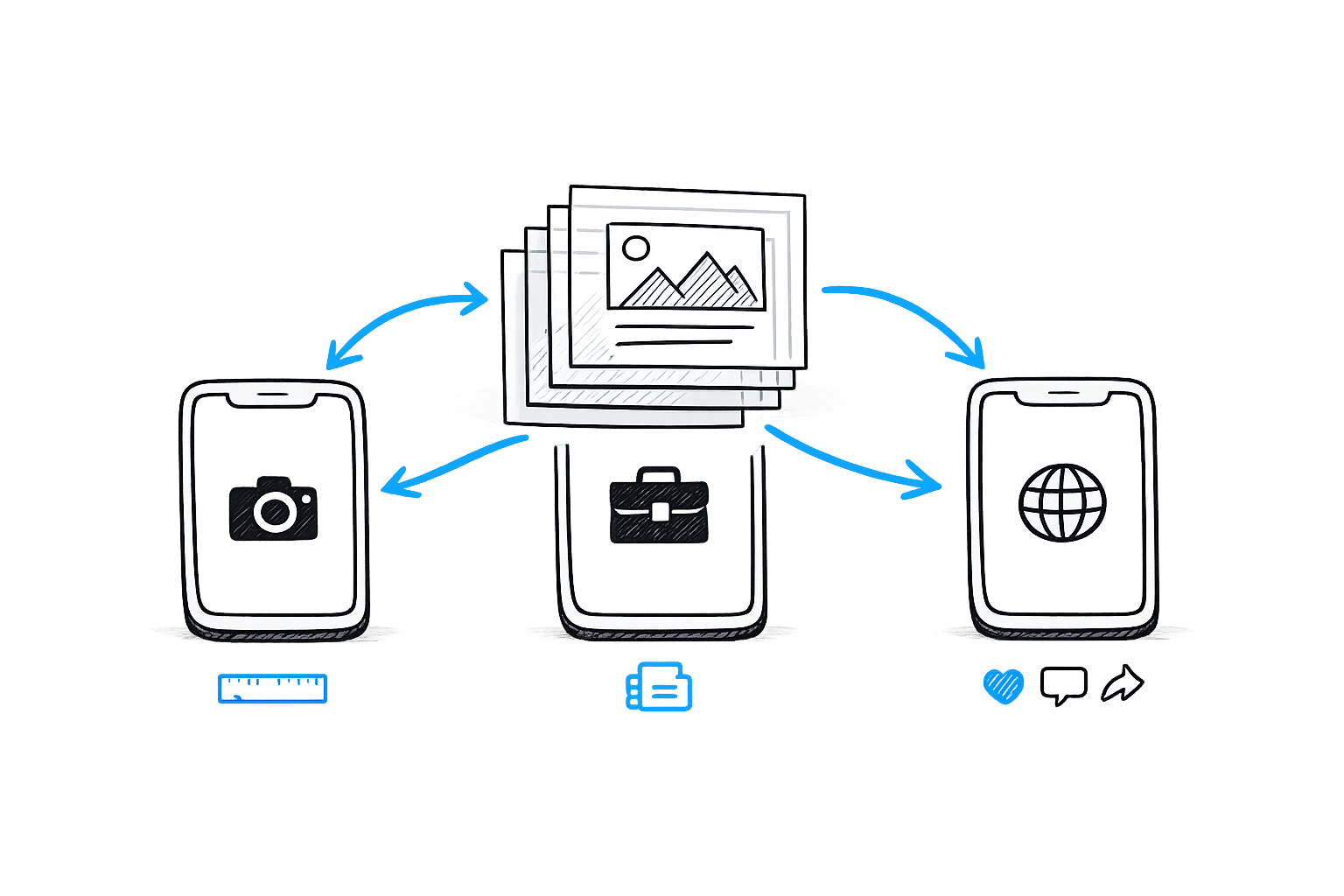
Carousels are a highly effective way to share multiple images, videos, or slides in a single post, boosting engagement and reach across platforms like Instagram, LinkedIn, and Facebook. Here's why they work and how to use them:
- Higher Engagement: Carousel posts generate up to 2–3 times more engagement than single-image posts.
- Platform-Specific Benefits:
- Instagram: 12% more engagement on average compared to Reels.
- LinkedIn: Carousel PDFs drive 5 times more clicks than other formats.
- Facebook: Carousels achieve 1.4x more engagement than single-image posts.
- Cross-Platform Efficiency: Sharing carousels across platforms helps you connect with diverse audiences without creating separate content for each.
Quick Tips for Sharing Carousels:
- Instagram: Use portrait images (1080 x 1350 px), up to 20 slides, and ensure text is readable on small screens.
- LinkedIn: Export as a single PDF (1080 x 1080 px or 1080 x 1350 px), keeping file sizes under 10 MB.
- Facebook: Stick to square images (1080 x 1080 px) with a maximum of 10 slides.
Tools like Draft AI simplify the process by automatically adjusting dimensions, file formats, and designs for each platform, saving time and maintaining brand consistency.
Want to make your carousels stand out? Focus on clear hooks, readable text, and strong calls-to-action tailored to each platform’s audience.
Step 1: Export Your Carousels from Draft AI
Draft AI streamlines the process of creating and exporting carousels by automatically adjusting dimensions and file formats to suit each platform's specifications. Whether your carousel originates from a topic, URL, blog post, or even a voice message, exporting takes just a few seconds.
Carousels can range from 3 to 20 slides, though engagement tends to peak with 8–12 slides. To ensure your brand identity shines through, you can apply your brand kit - logos, custom fonts, and color palettes - across all slides automatically. This keeps your visuals consistent, whether you're targeting Instagram's colorful feed or LinkedIn's professional audience.
Here’s how to optimize your exports for Instagram, LinkedIn, and Facebook.
Instagram Export Settings
For Instagram, export your carousels as individual JPG or PNG files in a 1080 x 1350 px (4:5 portrait) format. This vertical layout uses 25% more screen space than square posts, making it more likely to grab attention in mobile feeds, where over 70% of users browse. Instagram supports up to 20 slides as of 2026. To ensure readability on smaller screens (around 6 inches), set body text at a minimum of 22 px and headings at 36 px or larger. Add 40–60 px of padding around the edges to prevent text from being cut off by Instagram's interface.
LinkedIn Export Settings
LinkedIn carousels require a single PDF file instead of individual images. Export your slides at either 1080 x 1080 px (square) or 1080 x 1350 px (portrait) with a resolution of 150 DPI to balance clarity and file size. While LinkedIn allows PDFs up to 100 MB, keeping files under 10 MB ensures quicker loading on mobile networks. Draft AI optimizes LinkedIn exports for clean, data-focused designs rather than lifestyle visuals. Although LinkedIn technically supports up to 300 slides, carousels with 10–12 slides perform best for engagement.
Facebook Export Settings
For Facebook, export your carousels in a 1080 x 1080 px square format as JPG or PNG files. This format ensures uniformity across devices. Facebook supports a maximum of 10 slides per carousel. Like Instagram, it’s important to leave 40–60 px of padding around the edges to avoid clipping text due to rounded corners or platform overlays.
sbb-itb-9f5fe42
Step 2: Customize Your Carousels for Each Platform
Exporting your carousel is just the start. Each platform has its own quirks, audience preferences, and technical demands that can heavily influence engagement. A carousel that shines on LinkedIn might not hit the mark on Instagram unless you tweak elements like the hook, text size, or visual style. After exporting, it’s time to tailor your carousel to match the unique vibe and requirements of each platform.
Resize Images and Adjust Text
Even though Draft AI provides preset dimensions, double-check your text for readability. On a 1,080px canvas, aim for headlines between 64–96px and body text in the range of 28–36px to ensure it’s easy to read on mobile. This is especially important since over 60% of LinkedIn users browse on their phones, often during work hours.
Here’s a quick trick: use the 20% rule to test readability. Shrink your slide preview to 20% of its original size - if the text is still legible, you’re good to go. Also, leave an 80px margin around your text to avoid it being clipped by platform UI elements, like rounded corners or overlays. Keep in mind that Instagram’s 4:5 portrait ratio offers more vertical space than a square post, but that extra space won't matter if your text gets cut off at the edges.
Add Platform-Specific Hooks
Your first slide is your hook - it needs to grab attention within 3–4 seconds. On Instagram, this might mean bold, high-contrast visuals or a surprising stat. LinkedIn audiences, on the other hand, are drawn to professional insights and data-backed headlines that promise career or industry know-how [7, 11]. Facebook users tend to engage more with storytelling paired with community-focused calls-to-action [5, 7].
Instagram’s algorithm sometimes re-shows the second slide if users skip the first. To make the most of this, keep your cover headline short - 8–10 words max - for clarity and impact. Adding direct calls-to-action like “Save this for later” on Instagram or “Drop a comment” on Facebook can boost engagement by 20–30%.
Use Draft AI's Content Features
Draft AI offers tools to streamline your customization process once your carousel is exported. Its Brand Kit stores your logos, color palettes, and font combinations, automatically applying them to your carousels. This ensures your visuals stay consistent across platforms like Instagram and LinkedIn. The AI can also adapt your tone of voice - keeping it professional for LinkedIn while adding a relaxed touch for Instagram and Facebook - without losing your core message.
For teams juggling multiple campaigns, the CSV import feature allows you to create several carousel variations in one go, all while maintaining brand consistency. You can even save successful designs as templates, making it easier to replicate layouts for future projects. This approach can cut your creative workload by up to 60% when managing multi-platform strategies.
Next, we’ll dive into how to upload your customized carousels to each platform with ease.
Platform Comparison: Carousel Requirements and Tips
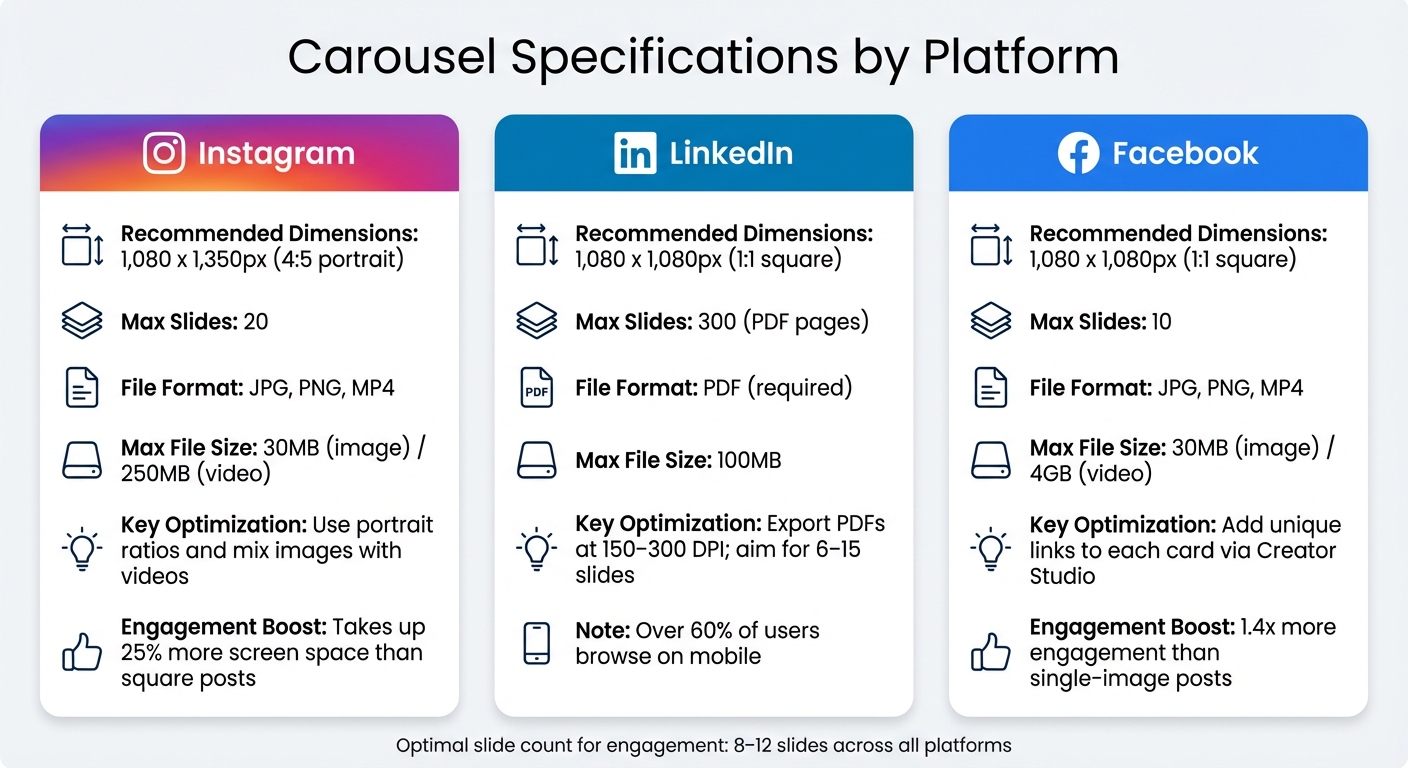
Carousel Specifications and Requirements by Platform: Instagram, LinkedIn, and Facebook
Each platform has its own rules for file formats, slide limits, and presentation styles. Knowing these differences ahead of time can save you from tedious reformatting and help you create carousels that look polished everywhere. Here’s a breakdown of the key specifications and tips for designing carousels that work seamlessly across platforms.
Carousel Specifications by Platform
Instagram allows up to 20 slides, though some third-party tools may limit you to 10 slides due to API restrictions. Accepted file types include JPG, PNG, and MP4, with a maximum size of 30MB for images and 250MB for videos. For the best visual impact, use the 4:5 portrait ratio (1,080 x 1,350px), as it takes up about 25% more screen space compared to square posts.
LinkedIn takes a different approach. Instead of a native carousel feature, you upload a multi-page PDF, which LinkedIn displays as swipeable slides. While you can technically include up to 300 pages, engagement tends to peak with 6 to 15 slides. To maintain sharp text and visuals after compression, export your PDFs at 150–300 DPI. Stick with a 1:1 square format (1,080 x 1,080px) for a consistent look, especially since over 60% of LinkedIn users browse on mobile devices.
Facebook supports carousels with 2 to 10 cards, accommodating images and videos. Through Creator Studio, you can add clickable links to each card, making it possible to direct users to different landing pages. Facebook carousel posts are particularly effective, generating 1.4x more engagement than single-image posts.
For an at-a-glance comparison, check out the table below:
| Platform | Recommended Dimensions | Max Slides | File Format | Max File Size | Key Optimization |
|---|---|---|---|---|---|
| 1,080 x 1,350px (4:5) | 20 | JPG, PNG, MP4 | 30MB (image) / 250MB (video) | Use portrait ratios and mix images with videos | |
| 1,080 x 1,080px (1:1) | 300 (PDF pages) | PDF (required) | 100MB | Export PDFs at 150–300 DPI; aim for 6–15 slides | |
| 1,080 x 1,080px (1:1) | 10 | JPG, PNG, MP4 | 30MB (image) / 4GB (video) | Add unique links to each card via Creator Studio |
Step 3: Upload and Share Your Carousels
Once your carousel is exported and customized, it's time to share it with the world. Here's how to upload your content to different platforms and make the most of your posting strategy.
How to Upload Carousels on Each Platform
LinkedIn: To upload your carousel, save it as a PDF. Start by clicking "Start a post" (or "Post" on mobile), then select the document icon (or "Add a document") and upload your file. Add a descriptive title to improve search visibility and craft a caption with a strong hook and a clear call-to-action. You can post immediately or use the clock icon to schedule it up to three months in advance.
Instagram: Using the native app, tap "+ Create", choose "Post", and then "Select multiple" to upload up to 20 photos or videos. Arrange your slides in the correct order, write your caption, and, if you have a Professional account, use "Advanced settings" to schedule posts up to 75 days ahead. Keep in mind that you can schedule up to 25 posts per day. If you're using third-party tools, note that API restrictions may limit you to 10 slides.
Facebook: For the best results, use Meta Business Suite. Click "Create Post", choose Facebook (and Instagram if you're cross-posting), and upload up to 10 images. Use the "Schedule" option in the publish dropdown to set your posting time. To create swipeable carousels, you’ll need to use Meta Business Suite, as organic multi-image posts don't display this way natively on Facebook.
To boost engagement, reply to comments within the first 30 minutes of posting and add alt text to each slide for accessibility.
Once your carousel is uploaded, the next step is scheduling your posts for optimal reach.
Schedule Posts and Automate Sharing
Scheduling tools like Draft AI simplify the process by exporting files tailored for each platform - PDFs for LinkedIn and image files for Instagram and Facebook - so you don’t have to juggle multiple tools.
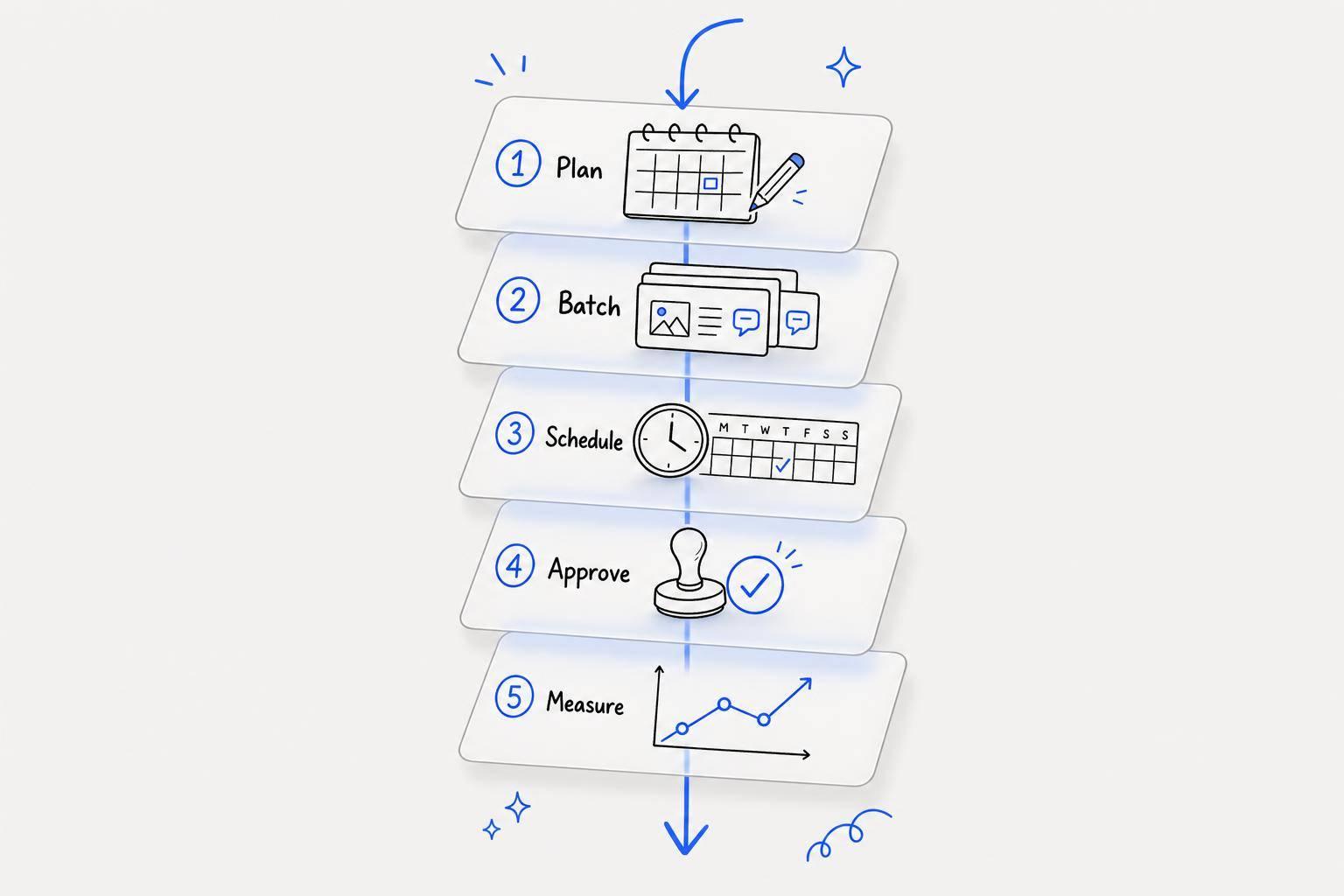
Instagram's Professional accounts allow native scheduling, while LinkedIn's native scheduling is mostly available for company pages (personal profiles may need third-party tools). To save time, consider batching your content creation. Plan and schedule a week or even a month’s worth of carousels in one go to keep your posting consistent without the daily hassle.
Avoid the trap of identical cross-posting. While it’s tempting to share the same content everywhere, each platform has its own style and audience. For example, include clickable links in Facebook and LinkedIn captions, whereas on Instagram, focus on hashtags and direct users to the "link in bio." Tailoring your captions to each platform makes your posts feel more natural and engaging.
Timing is key for engagement. Aim to schedule your carousels for morning or midday hours, ideally between 8–11 AM on Tuesday, Wednesday, or Thursday. This is when users are more likely to swipe through your slides rather than scrolling past.
Fix Common Carousel Sharing Problems
Even with careful planning, technical hiccups can creep in when sharing carousels. Here’s how to tackle some common challenges to ensure your content looks polished and performs well across platforms.
Fix Image Distortion and Sizing Issues
Instagram forces all slides to match the first slide's aspect ratio, which can crop text or graphics. For example, if the first slide is square (1,080 x 1,080 px), Instagram will crop all subsequent slides to the same square ratio - even if they were uploaded as portrait. To avoid this, make sure all your slides are in the same aspect ratio before uploading. Stick to 1,080 x 1,080 px for square or 1,080 x 1,350 px for portrait as standard dimensions.
LinkedIn's heavy compression can make text blurry. While 72 DPI is typically fine for screens, LinkedIn’s compression can leave text-heavy slides looking pixelated. To combat this, export your LinkedIn carousels at 150–300 DPI for sharper text. Using vector text can also help avoid pixelation. Keep file sizes under 10 MB to ensure fast loading times, as larger files may frustrate users and prompt them to scroll past before your content even appears.
Avoid placing text or logos too close to the edges of your slides. Interface elements often clip these areas. Leave at least 60–80 px of padding on a 1,080 px canvas. On Instagram, avoid placing text in the bottom 150 px, as it can overlap with navigation buttons. Also, ensure a contrast ratio of at least 4.5:1 between text and background colors for accessibility.
Handle Slide Limit Restrictions
Instagram caps carousels at 10 slides. If your content exceeds this limit, you’ll need to trim it or split it into multiple posts.
Focus on your strongest content. Use the first slide to grab attention with a powerful hook, and prioritize the most impactful information for the remaining slides. Cut anything that doesn’t directly support your message. If your story requires more than 10 slides, divide it into “Part 1” and “Part 2” posts to keep the narrative cohesive while adhering to platform limits.
Adjust slide counts for different platforms. While Instagram limits you to 10 slides, LinkedIn allows much longer PDF carousels - up to 300 pages, though 8–12 slides are often ideal. Tools like Draft AI can help you adapt your content for different platforms by converting slide counts automatically. For larger projects, use a spreadsheet and CSV import to quickly create multiple carousel variations without starting from scratch.
Improve Low-Performing Carousels
Analyze where users stop engaging. Metrics like "swipe depth" and "completion rate" reveal which slides are losing your audience. For instance, if users drop off after the second slide, your hook might not be compelling enough, or the next slide might fail to deliver on its promise. If users disengage near the end, it could mean your narrative lost momentum or didn’t provide a satisfying conclusion.
"Don't just count likes and shares. The real metric for carousel success is how many slides people actually view. That tells you if your content truly engages."
- Michael Stelzner, Social Media Examiner
Refine your hook and clarify your call-to-action. The first slide is critical - if engagement is low, experiment with different hooks like numbered lists ("7 mistakes…"), bold statements, provocative questions, or surprising insights. On the final slide, include a clear, actionable instruction like "save for later" or "tap the link in bio" to drive conversions. Visual cues such as arrows, “Swipe →” text, or progress markers (e.g., "3 of 7") can also encourage users to keep swiping.
Leverage Draft AI to tweak individual slides or generate fresh hooks based on performance data. Aim for 6–12 slides - fewer than five can feel incomplete, while more than 15 risks losing attention. For mobile-friendly design, use large fonts (at least 22 px for body text) and high-contrast colors. Summarize your main idea in the caption and include a question to spark comments, which can boost engagement signals to the platform’s algorithm.
Conclusion
By mastering export, customization, and troubleshooting techniques, you can seamlessly share carousel posts across platforms without starting from scratch. Export your content in the correct format, tailor it to each platform's unique requirements, and address potential issues early to maintain a consistent brand identity. This streamlined process not only saves time but also boosts engagement across Instagram, LinkedIn, and Facebook.
Tools like Draft AI make this process faster and more efficient by automating repetitive tasks. Its Brand Kit feature applies your brand colors, fonts, and logos automatically, ensuring your visuals stay consistent without extra effort. Carousel posts, in particular, are highly effective, generating 1.4 times more reach and engagement than single-image posts. Brands that adopt multi-platform strategies see engagement rates increase by 35%. These numbers highlight the value of focusing on strategy and storytelling instead of getting bogged down by technical details.
Put your energy into creating attention-grabbing hooks, maintaining a smooth narrative across slides, and ending with a powerful call-to-action. Let tools handle the nitty-gritty - like aspect ratios and platform-specific optimizations - so you can focus on what truly matters: telling a story that resonates.
FAQs
Can I reuse one carousel on all platforms?
To make your carousel content effective across various platforms, you’ll need to adjust it for each platform’s specific format and audience preferences. Start by creating a core version of the carousel that aligns with your message and branding. Then, customize it to suit the unique requirements and user behaviors of platforms like Instagram, LinkedIn, and Facebook. This approach keeps your content engaging and ensures it stays consistent with your brand identity.
Why does my carousel text look blurry or cropped?
Blurry or cropped carousel text often happens when the content isn't sized or formatted correctly. To avoid this, make sure your designs match the platform's specific dimensions. For example, LinkedIn works best with 1080 × 1080 pixels, while Instagram performs well with aspect ratios like 3:4 to prevent cropping. Sticking to these dimensions and keeping text within safe zones will ensure your content looks sharp and remains easy to read across different platforms.
What slide count gets the best engagement?
Carousels with 6 to 10 slides tend to generate the most engagement on platforms like LinkedIn and Instagram. Studies show this range strikes a balance - it’s long enough to hold attention but not so lengthy that viewers lose interest. Plus, it encourages users to interact by swiping through the slides.